
Mouse Reader for NVDA
NVDA add-on
Version 0.6.0 (beta) · Updated · · Free and open source
Mouse Reader reads the text under the mouse where NVDA's mouse tracking, also known as mouse echo, cannot: messages in Slack and other Electron apps, VS Code's chat, pictures of text, and PDFs whose font makes a mess of OCR. Hold Control+NVDA and click, and Mouse Reader reads the paragraph you clicked; from then on, move the mouse to hear the paragraphs under it, or hold Shift+NVDA and click to read on from that paragraph. On a web page or a PDF in Chrome or Edge it reads the page's own text, exact whatever the font looks like; everywhere else it takes a screenshot of the window and uses OCR. Because the window draws itself for the picture, it works with Windows Magnifier in full-screen mode.
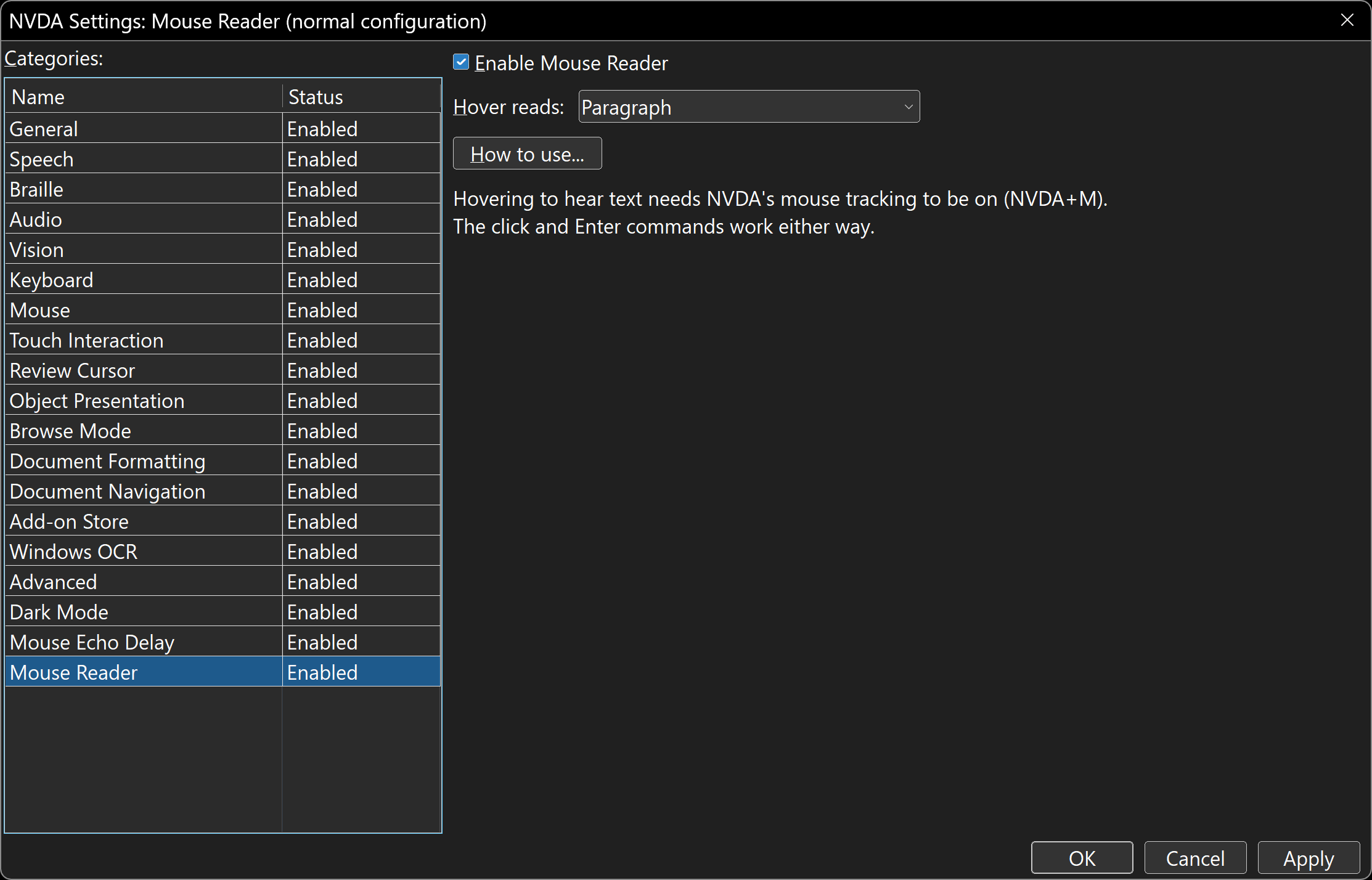
One Check Box and a Choice
Turn it on or off, and choose how much a hover reads: a line, a paragraph, or a whole message or section. The rest is shortcuts.
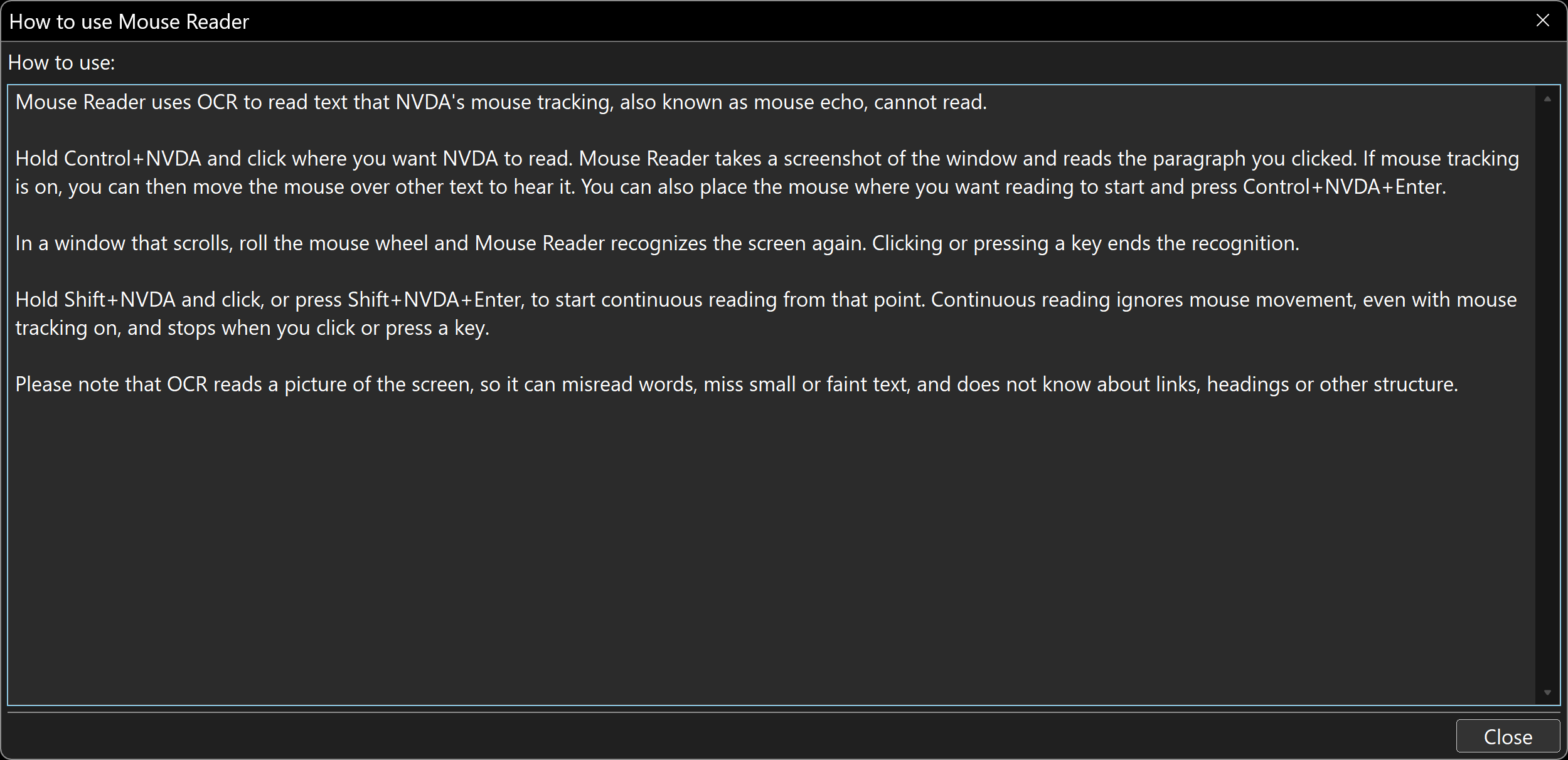
The Shortcuts, in Plain Words
Press How to use in the settings and the shortcuts are there in a text box NVDA reads out, whenever you need reminding.
Screenshot 1 of 2: The NVDA Settings dialog open at the Mouse Reader category: an Enable Mouse Reader check box, a Hover reads dropdown set to Paragraph, a How to use button, and a note that hovering needs NVDA's mouse tracking to be on. One Check Box and a Choice. Turn it on or off, and choose how much a hover reads: a line, a paragraph, or a whole message or section. The rest is shortcuts.
How to Install
- Press the Install button above to download
mouseReader-0.6.0.nvda-addon. Your browser may ask you to confirm the download, since.nvda-addonfiles are uncommon. - Open the downloaded file (press Enter on it in your Downloads folder). NVDA shows a dialog titled Add-on Installation that says: “Are you sure you want to install this add-on? Only install add-ons from trusted sources. Addon: Mouse Reader 0.6.0”. Choose Yes.
- NVDA says “Please wait while the add-on is being installed”, then asks: “Changes were made to add-ons. You must restart NVDA for these changes to take effect. Would you like to restart now?” Choose Yes.
- Updating later works the same way, except the first dialog asks whether to update the installed version to the new one. Choose Yes. You can also install from inside NVDA: NVDA menu, Tools, Add-on Store, then Install from external source, and pick the downloaded file.
To turn it off, untick Enable Mouse Reader in NVDA Settings, Mouse Reader. The keyboard commands can be changed under Input Gestures, in the Mouse Reader category.
How to Use
Hold Control+NVDA and click where you want NVDA to read, or place the mouse there and press Control+NVDA+Enter. Mouse Reader reads the paragraph you clicked. If mouse tracking is on, you can then move the mouse over other text to hear it, a paragraph at a time.
Where the text comes from. On a web page, or a PDF open in Chrome or Edge, Mouse Reader reads the page's own text, so the words are exact whatever the font looks like, a bulleted list reads item by item, and the browse cursor moves to the paragraph you clicked, so the keyboard carries on from there. Everywhere else, and on pages whose text has no paragraphs, it takes a screenshot of the window and uses OCR. The Read text from setting can force OCR only, and Play a beep when OCR is used tells the two apart.
In an OCR window that scrolls, roll the mouse wheel and Mouse Reader recognizes the screen again. Clicking or pressing a key ends the recognition; recognize again whenever you need it.
Hold Shift+NVDA and click, or press Shift+NVDA+Enter, to start continuous reading from that point. Continuous reading ignores mouse movement, even with mouse tracking on, and stops when you click or press a key. On a page that has focus, the page scrolls along.
The Hover reads setting chooses how much you hear at a time: one line, one paragraph, or a whole message or section.
Key Features
- Reads what mouse tracking cannot. NVDA's mouse tracking asks an app what text is at a point on the screen, and many apps cannot answer: Slack, Discord, VS Code and other Electron apps, or a picture of text. Mouse Reader recognizes the words in a screenshot instead, using the same Windows OCR engine as NVDA+R.
- Real text from web pages and PDFs. Where NVDA already holds the page, in Chrome or Edge, Mouse Reader reads that instead of a picture: exact words in any font, whole paragraphs, list items one by one, and the browse cursor follows your click. A PDF in a decorative handwriting font reads as cleanly as plain type.
- Paragraphs on hover. After one click, moving the mouse over the window reads the paragraph under it, once per paragraph. In an OCR window, recognized lines are grouped by their spacing, column by column, so a sidebar and a message list stay apart, and list items, sentence ends and indents start new paragraphs; bullet dots, which OCR itself leaves out, are found in the picture.
- Read on to the end. Shift+NVDA and click reads from that paragraph to the bottom of the window in NVDA's own continuous reading, ignoring the mouse until you press a key or click.
- Scroll and keep going. Roll the wheel over a recognized window and it is recognized again half a second after the wheel stops, then the paragraph under the pointer is read.
- Works with Magnifier. The picture comes from the window drawing itself, not from a photo of the screen, so full-screen Magnifier neither limits it to the zoomed-in view nor throws off where you clicked.
- Three hover levels: Line, Paragraph, or Block (a whole message or section), in the settings or through a command you can assign a key to.
- Automatic or OCR only. The Read text from setting, or a command you can assign a key to, switches between the page's own text when it has paragraphs and OCR everywhere; an optional soft beep marks each OCR recognition, so you always know which one you are hearing.
- Stays out of the way. Outside a recognized window, NVDA's mouse tracking is untouched. Recognized text is dropped after three minutes, or as soon as you click or type, since the window has probably changed.
Accessibility
- Everything is a keyboard command or a modifier-plus-click; the click is swallowed, so the app underneath never sees it and nothing gets selected or opened by accident.
- The How to use window is a read-only text box that NVDA reads on focus and the arrow keys move through.
- Paragraphs are handed to the voice in sentence-sized pieces, so long messages never stall the synthesizer.
- Built and tested by a low vision NVDA user with full-screen Magnifier, on Windows 11 with a 4K display.
Requirements and Known Limits
- NVDA 2026.1 or later, on Windows 10 or 11, with the Windows OCR language for your language installed (it is, for the language Windows is set to).
- Hovering needs NVDA's mouse tracking to be on (NVDA+M). The click and Enter commands work either way.
- OCR is OCR. Where there is no page text to read, it reads a picture of the screen, so it can misread words, miss small or faint text, and does not know about links, headings or other structure.
- Some viewers draw text as loose snippets with no paragraphs (Access-a-Reader and other pdf.js-style viewers, some e-book readers). Mouse Reader notices and uses OCR there, columns and all, though book-style text is where OCR's paragraphs are weakest.
- If a browser page unexpectedly uses OCR (the beep sounds, if it is on) and NVDA feels slow in that browser, NVDA has fallen back to reading the browser through UI Automation. Exit the browser completely and open it again, with NVDA running, and it is back on the normal route. Right after NVDA starts, the first click on a page may say “Loading” for a moment.
- Beta. Paragraph grouping is a set of rules tuned on Slack, VS Code, a school newsletter PDF and a textbook; if something reads as one big chunk or as separate lines when it should not, tell us which app.
- Recognizing a large window takes up to a second; a small one a fraction of that.
Open Source
Mouse Reader is free software under the GNU General Public License, version 2, the same licence as NVDA. The source code and the licence are in the mouse-reader-for-nvda repository on GitHub, where each version is also published as a release.
Categories
Productivity NVDA add-ons